
This tutorial shows you how to wireframe login and signup pages in minutes using Wireframable. Describe the auth flow you want, pick your brand colors, and the AI generates a complete page layout you can share, iterate on, and use as a reference for the build.
How to Wireframe a Login Page (Step-by-Step)
Login pages are rarely something you crawl from a live URL (they are behind auth or do not exist yet). So the flow is to describe the auth layout and let the AI generate it.
Step 1: Create a Project
Sign in to Wireframable and create a new project. Skip the URL field and give it a name like “Auth Pages” or “Login/Signup.”
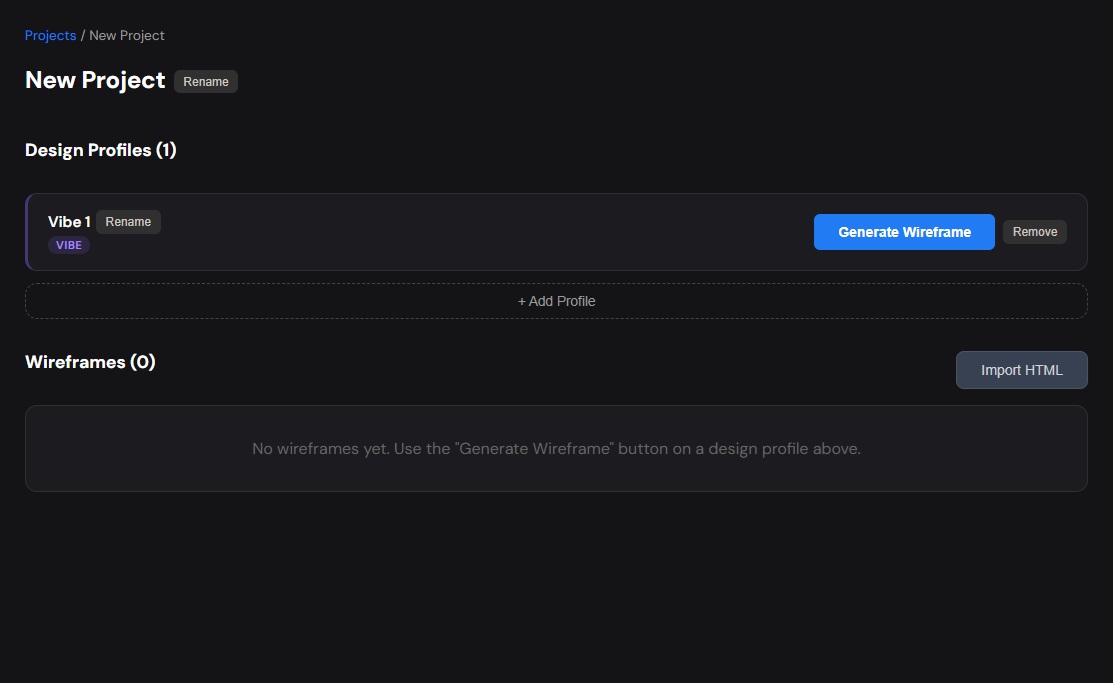
Step 2: Open the Config Modal
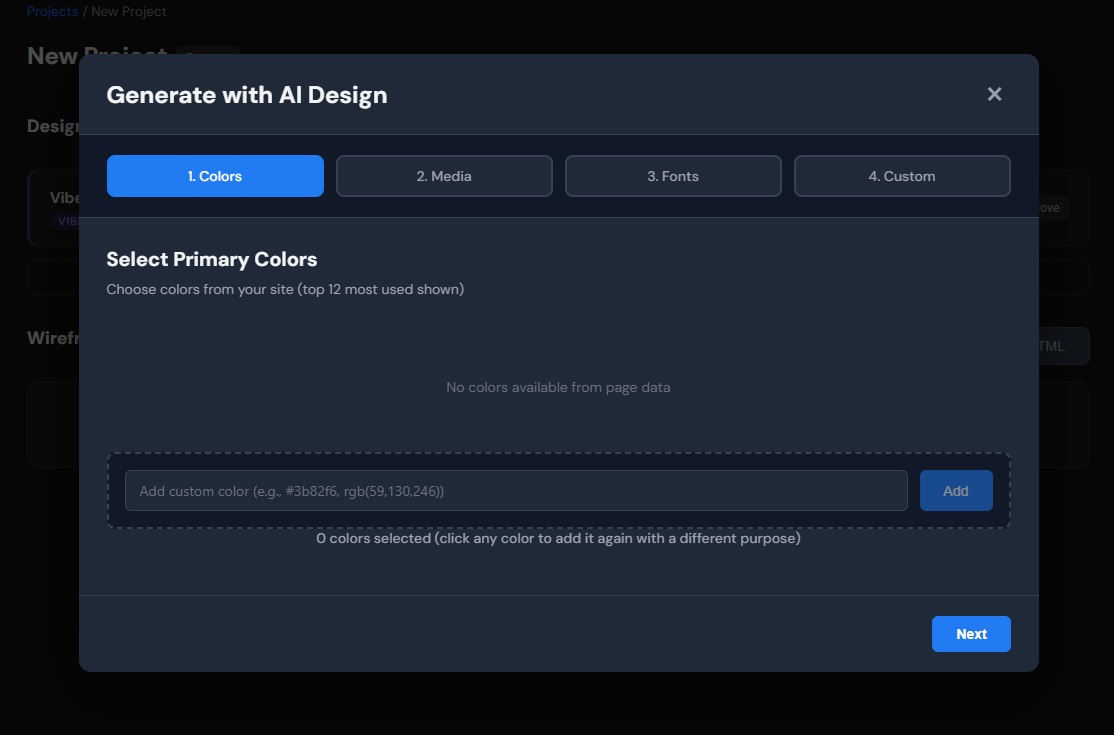
Click Generate Wireframe to open the 4-step configuration modal:
- Colors – add your brand hex codes. For auth pages, you typically need a background color, primary button color, text color, and maybe a secondary/link color.
- Media – paste a URL to your logo, plus any illustration or product screenshot you want on a split-screen layout. Optional if you want a minimal centered form.
- Fonts – add your brand font via Google Fonts URL or custom font URL.
- Custom Prompt – required (minimum 100 characters). Describe the exact auth page layout you want.
Step 3: Write a Detailed Prompt
The prompt drives the layout. Here are some examples:
Simple centered login:
“Login page for a project management SaaS called TaskFlow. Centered card on a light gray background. Logo at top of card. Email and password fields. ‘Sign in’ primary button full width. ‘Forgot password?’ link below. Divider with ‘or continue with’ text. Google and GitHub social login buttons. ‘Don’t have an account? Sign up’ link at bottom. Clean, minimal, professional.”
Split-screen signup:
“Signup page with a two-column split layout. Left side is a dark blue marketing panel showing a product screenshot, a customer testimonial quote, and three bullet points about features. Right side is the registration form: company name, full name, email, password fields, a checkbox for terms acceptance, and a ‘Create account’ button. Header on the right side with the logo and a ‘Already have an account? Log in’ link.”
Tabbed login/signup:
“Combined auth page with a centered card. Two tabs at the top: ‘Log In’ and ‘Sign Up’. Login tab shows email, password, remember me checkbox, sign in button, forgot password link. Sign up tab shows name, email, password, confirm password, create account button. Below both tabs: social login buttons for Google and Apple. Subtle background pattern or gradient. Modern and clean.”
Step 4: Generate and Iterate
Click Generate with Live Preview. The AI builds your auth page wireframe in 30-60 seconds.
Common iterations:
- “Make the form narrower and add more padding”
- “Add a password strength indicator below the password field”
- “Switch to a split-screen layout with a testimonial on the left”
- “Add a progress bar at the top showing step 1 of 3”
Each regeneration costs one credit and takes about a minute. Share any version with a link or export the HTML/CSS.
Tips for Auth Page Wireframes
Specify form fields explicitly. Do not just say “login form.” List the exact fields: email, password, remember me checkbox, forgot password link. The AI follows what you describe.
Mention the social login providers. Different providers have different visual weight. “Google and GitHub” produces a different layout than “Google, Apple, Facebook, and Twitter.”
Describe the empty state too. If there are validation messages, placeholder text, or helpful copy you want visible, mention it in the prompt.
Think about the flow. If your login should link to signup (and vice versa), mention that navigation. The AI will include the appropriate links and CTAs.
Specify mobile or desktop. Auth pages are one of the few page types that look quite different on mobile vs desktop. If you need both, generate two versions.
Frequently Asked Questions
Can I wireframe both login and signup in one generation?
You can describe a tabbed layout that shows both. Or generate them as separate wireframes within the same project to explore different layouts for each.
What about forgot password and email verification pages?
Generate those as separate wireframes with their own prompts. They are simple pages, so a short prompt like “Forgot password page: centered card with email field, submit button, and a ‘Back to login’ link” works fine.
Can the AI include proper form validation styling?
Yes. Mention it in your prompt: “Show inline validation with red error text below the email field and a green checkmark on the password field.” The AI will include those visual states.
Do I need to provide real branding?
No, but it helps. At minimum, add your primary brand color and a logo URL. The AI generates realistic placeholder text for everything else.
How is this different from copying a login template?
Templates give you a fixed layout. Wireframable gives you a custom layout built to your exact spec – split screen with specific marketing copy, particular social providers, specific field arrangements. No template adapting needed.
Start Wireframing Your Auth Pages
Describe the login or signup flow, pick your colors, and generate. No templates to adapt, no components to drag around.
Try it free → 3 free credits/month, no credit card required.