Product detail pages are deceptively hard to design. On the surface it is just a photo, a title, a price, and an add-to-cart button. Then you start thinking about the gallery layout, size selectors, variant swatches, product descriptions, trust badges, cross-sells, reviews, shipping info, and mobile stacking order, and suddenly you are three hours deep in Figma with nothing to show for it.
The real challenge is not knowing how to lay all of that out. You have done product pages before. The challenge is knowing which layout, which visual hierarchy, which design direction the client actually wants when all they have told you is “make it feel premium” or “we want something like Apple but for candles.”
This tutorial shows you how to generate product detail page wireframes in under five minutes using Wireframable. Give it your brand context, describe what you are going for, and the AI builds a styled PDP mockup you can put in front of the client. Iterate fast, throw out the misses, and zero in on the right direction without burning a full day on layouts that never get approved.
Want to see the end result before reading the tutorial? Here is a PDP mockup generated entirely with Wireframable.
Why PDP Design Is a Guessing Game
Every ecommerce client thinks their product page is simple. It never is.
A PDP has to do a lot of things at once. It needs to sell the product, answer objections, build trust, show the product from every angle, handle variants without cluttering the page, and guide the visitor toward the cart. That is a lot of competing priorities, and they all fight for space above the fold.
The designer’s job is to figure out the hierarchy. What goes first? How much room does the gallery get versus the product info? Do reviews live on the page or in a tab? Is there a sticky add-to-cart bar on mobile? Where do the trust elements go?
You will not figure this out from a brief. You will figure it out by showing things to the client and watching their reaction. The problem is that building each PDP direction takes time. So you show one version, maybe two, and hope you guessed right.
There is a faster way to find the right answer.
How It Works
Wireframable generates PDP wireframes from a text prompt and brand assets. Crawl the client’s existing product page for context, or start from scratch with just a description of what you want. Either way, you get a fully styled, responsive product detail page mockup in about a minute.
You can be as prescriptive or as open-ended as you want. Describe every section and its position, or just say “premium PDP for a skincare brand” and let the AI make the design calls. The more parameters you provide, the more on-brand the result. The fewer you provide, the more creative freedom the AI takes.
Here is the step-by-step.
Step 1: Create a Project
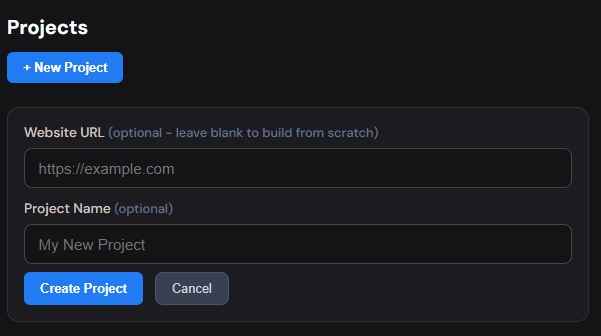
Head to your Wireframable dashboard and create a new project.
Step 2: Crawl an Existing Product Page (Optional)
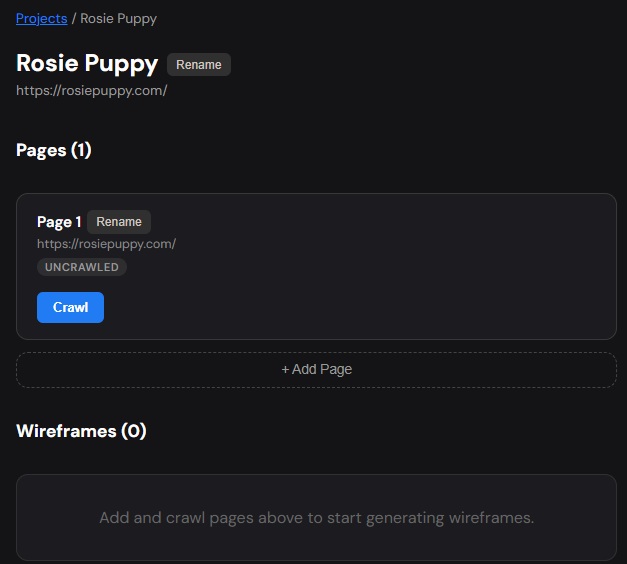
If the client already has a product page, enter the URL and let Wireframable crawl it. This pulls in the product images, colors, fonts, copy, and page structure automatically. The AI uses this as context so the output feels connected to the real brand instead of looking like a generic template.
If you are designing a product page from scratch, like for a new store or a rebrand, skip this and go straight to brand assets.
Step 3: Pull Brand Assets
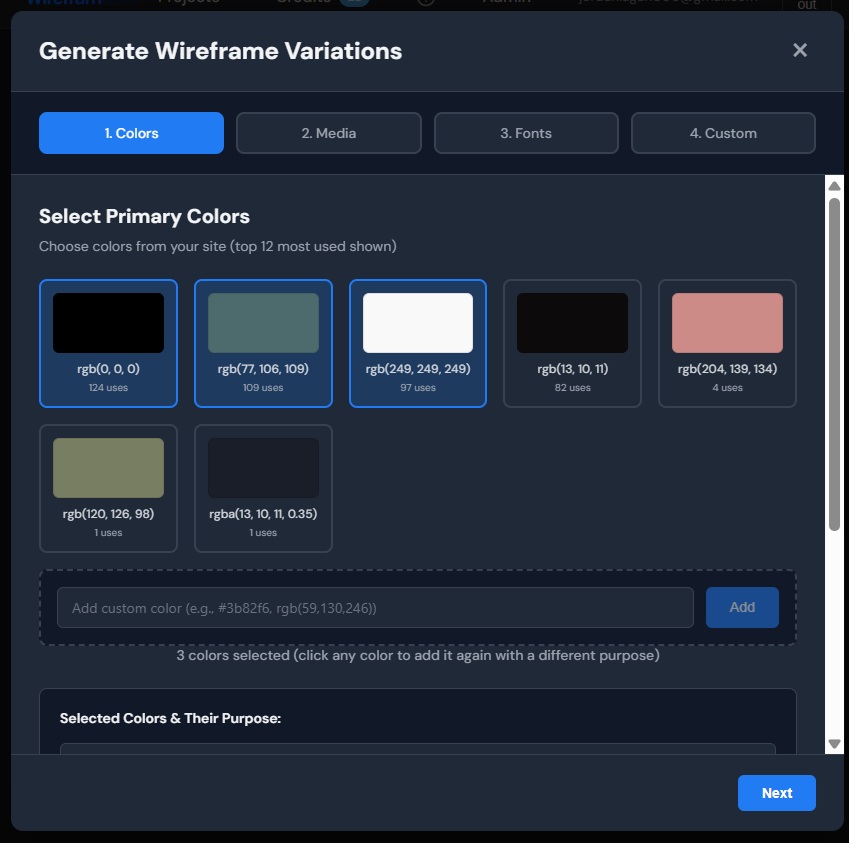
Click Generate Wireframe to open the configuration panel. This is where you set the brand context for the PDP.
How much you fill in here is up to you. Give the AI a full brand kit and it will stay tightly on-brand. Give it nothing and it will invent a design direction based on your prompt alone. Both approaches work depending on where you are in the project.
Colors. Select colors from the crawled page or enter your own. Label them (primary, secondary, accent, background) so the AI maps them correctly across the PDP. Or skip this and let the AI build a palette from the prompt.
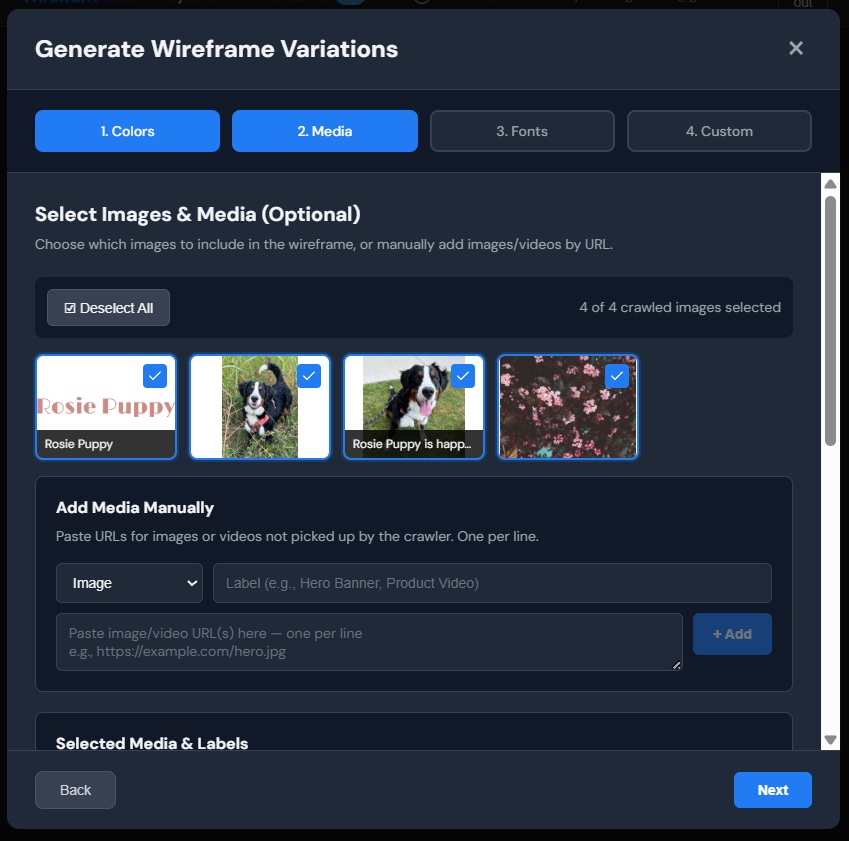
Media. This is where product images matter. Select the product photos, lifestyle shots, and logos you want on the page. Label images clearly: “product front,” “product lifestyle,” “logo.” The AI uses these labels to place images in the right context, a lifestyle shot in the hero area, product shots in the gallery, logos in the nav.
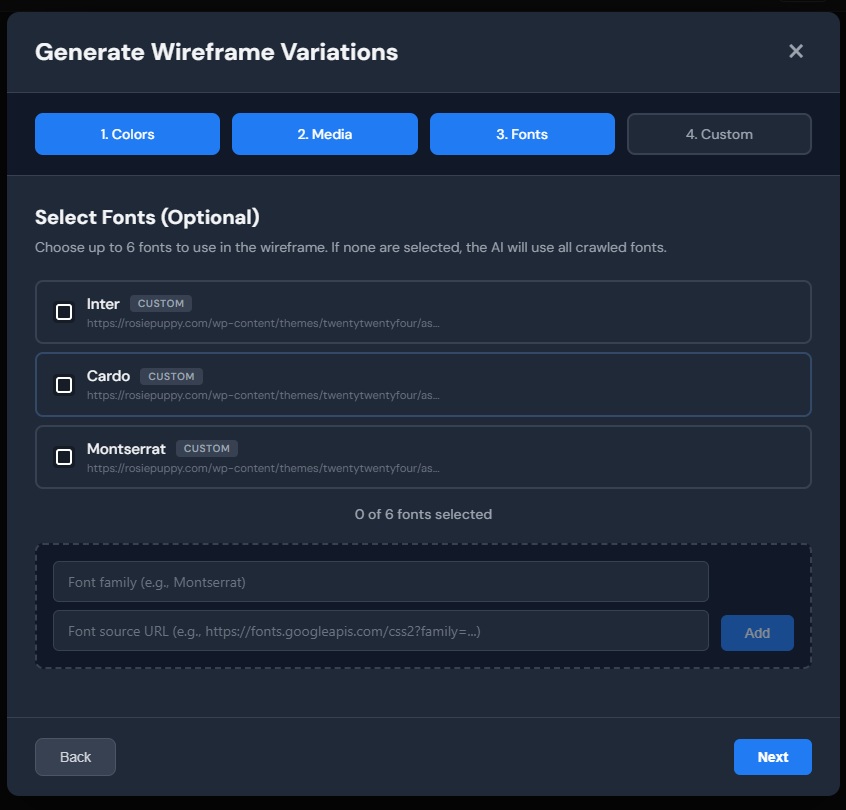
Fonts. Pick the brand fonts or let the AI choose something that fits the design direction. If you have a heading and body font decided, set them here. If not, the AI will pair fonts that complement the overall style.
Step 4: Enter a Custom Prompt
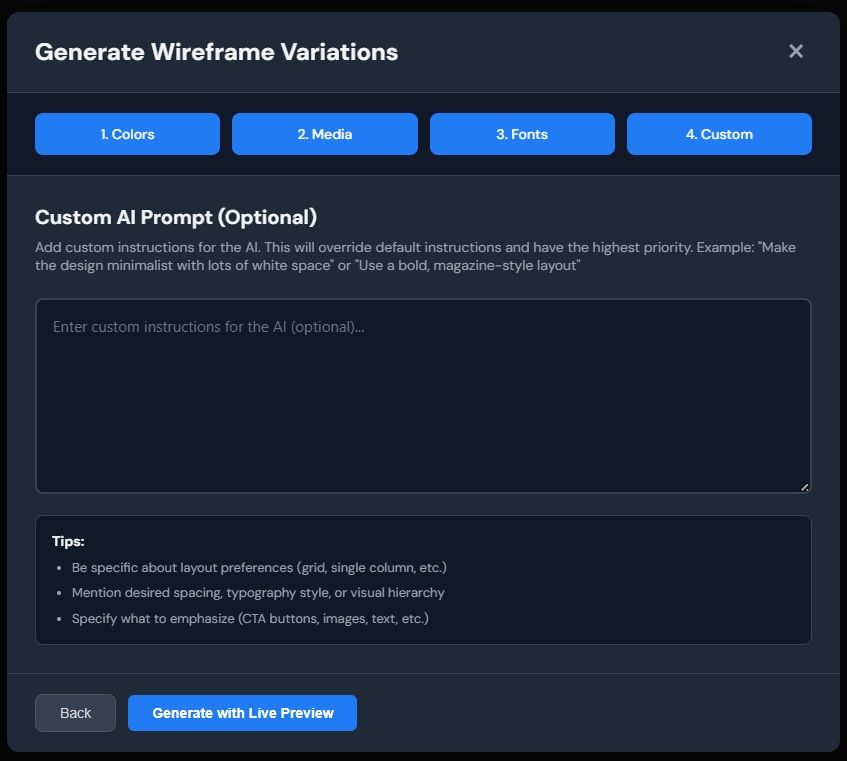
This is where you describe what kind of product page you want. The prompt drives everything about the layout, hierarchy, and design approach.
When you know the PDP structure you want:
- “Design a product detail page for a luxury watch. Large product gallery on the left taking up 60% of the viewport, product info on the right with title, price, short description, size selector, and add-to-cart button. Below the fold: product story section, specifications table, and customer reviews. Clean and minimal.”
- “Create an ecommerce PDP for a running shoe. Sticky add-to-cart bar on scroll. Hero gallery with 4 thumbnail images. Color variant swatches. Trust badges below the CTA. Cross-sell section at the bottom with 4 related products.”
When you are exploring directions:
- “Design a product detail page for an artisanal coffee brand. Something that feels warm and editorial, not like a standard Shopify page. Let the product photography breathe.”
- “Give me 2 different PDP layouts for a skincare line. One minimal and high-end, one more content-rich with ingredients, before/after, and reviews front and center.”
When you want the AI to take the lead:
- “Design a product detail page for a premium candle brand. Surprise me with the layout.”
You do not need to specify every section. Describe the vibe, the brand positioning, or just the product category and let the AI fill in the structure. Get specific once you see what direction resonates.
Step 5: Generate
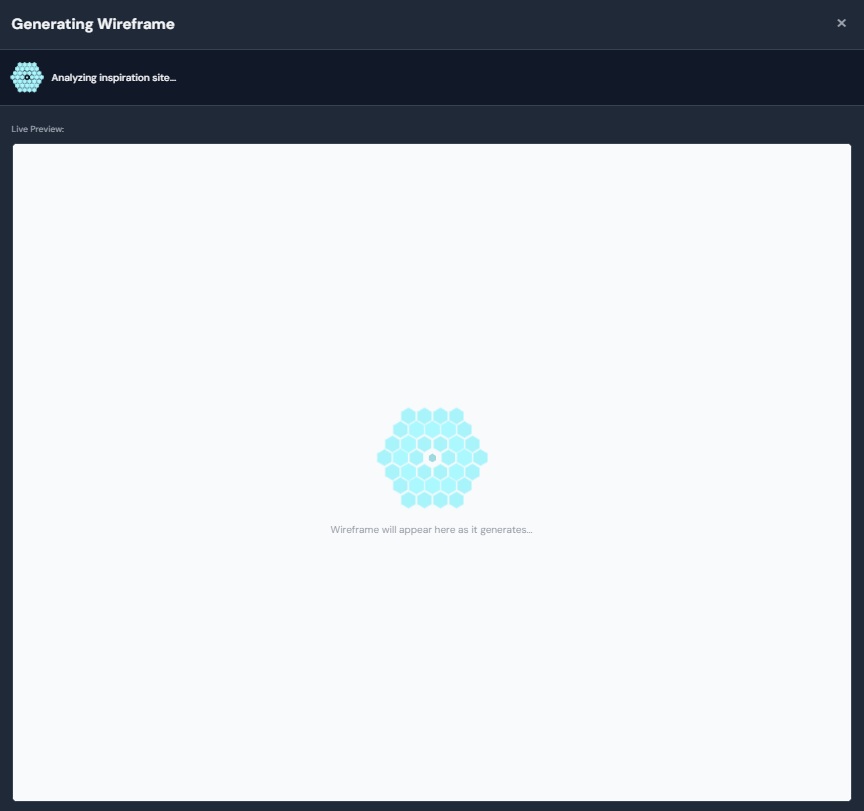
Hit generate and watch the PDP wireframe build in real time. Generation takes about a minute. You will see the product gallery, info panel, sections, and responsive layout come together live.
That is it. A styled, responsive product detail page wireframe in under five minutes. No component libraries, no layout math, no staring at a blank artboard.
What You Can Actually Build
Here is a PDP mockup generated entirely in Wireframable:
Full product detail page with gallery, product info, variant selectors, trust elements, and cross-sells. All from a single prompt and brand assets.
If It Is Not Quite Right
You are using this to find the right direction, not to ship the first output. Most of the value comes from the second or third iteration once you have seen what works and what does not.
Regenerate with a tighter prompt. If the gallery layout is off or the below-the-fold sections are not quite right, refine your prompt and run it again. Your first regeneration of each wireframe is free, and all versions are saved so you can compare.
Refine a specific section. Instead of regenerating the whole PDP, target one piece. Select the product info block, or the reviews section, or the cross-sells, describe what you want changed, and regenerate just that part. The rest stays the same.
Report it. If something is genuinely broken, like images placed wrong or a section that did not render, hit the report button. We read every one.
Where to Go From Here
Once you have a PDP mockup the client reacts to:
Share it with the client. Generate a public link and send it over. They can see the full page on any device without logging in. No Figma access needed, no “which file am I looking at” conversations.
Bring it into Figma. Screenshot the wireframe and use it as a reference layer in Figma, or use a plugin like html.to.design to convert the HTML into editable components. The layout decisions and visual hierarchy are already established. Now you are refining details instead of starting from zero.
Hand it to a developer. Every wireframe is clean HTML and CSS. If the project is ready to move to build, a developer can pull the code and start implementing directly.
Iterate on the direction. Not sure if the client wants a minimal PDP or a content-heavy one? Generate both. Show them two or three directions and let them point at the one that feels right. It is faster to narrow down from options than to build up from nothing.
Frequently Asked Questions
Can I wireframe a product detail page with AI?
Yes. Describe the product, the layout you are going for, and any specific sections (gallery, variants, reviews, cross-sells) and Wireframable generates a fully styled, responsive PDP mockup in about a minute.
How much does it cost to wireframe a PDP?
Each generation costs 1 credit. Every account gets 3 free credits per month. Your first regeneration of each wireframe is free, so you can refine the layout without spending an extra credit.
Does it work for different types of products?
Yes. The AI adapts the layout based on your prompt. A luxury watch PDP will look very different from a running shoe PDP or a subscription box PDP. Describe the product category and the vibe you are going for and the AI adjusts accordingly.
Can I include real product images?
Yes. Select product images from the crawled page, or manually add image URLs in the media step. Label them ("product front," "lifestyle shot," "logo") so the AI places them in the right context on the page.
Can I wireframe just the above-the-fold section of a PDP?
Yes. Specify in your prompt that you only want the hero product section, or any specific part of the PDP. The AI will generate just that section instead of the full page.
Start Generating PDP Wireframes for Free
The product page is where the sale happens. The faster you can show the client what it looks like, the faster you move from concept to conversion.
Try it free. Every account gets 3 free credits per month, no credit card required.